The Right Way to Back Up Your Mac and Why Most People Aren’t Doing It
Ask most Mac users if they back up their computer and they’ll say yes. Ask them when they last verified that backup actually worked, and you’ll get a very different answer.
Backup is one of those things everyone knows they should do and almost no one does correctly. And the consequences of getting it wrong don’t reveal themselves until the worst possible moment — a hard drive failure, a stolen laptop, or a ransomware attack that locks you out of everything.
Why iCloud Isn’t Enough
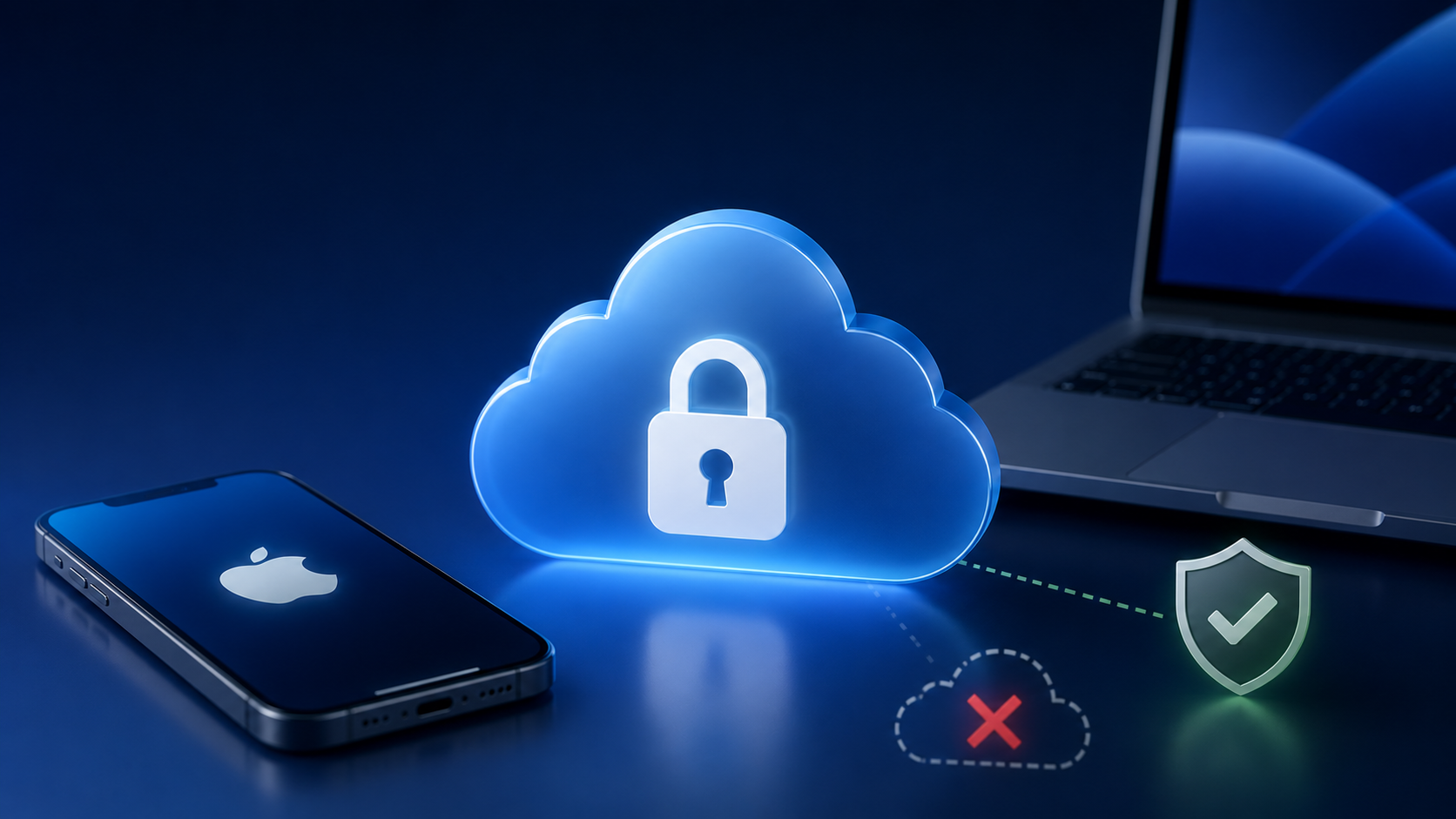
The most common misconception is that iCloud is a backup. It isn’t — it’s a sync. There’s a critical difference. When you sync, changes on one device propagate everywhere. That means if you accidentally delete a folder, or if malware corrupts your files, that corruption syncs across every device tied to your account. A backup, by definition, is a separate, independent copy that doesn’t change when your primary copy does.
iCloud is a wonderful tool. It is not a safety net for catastrophic data loss.
The 3-2-1 Rule
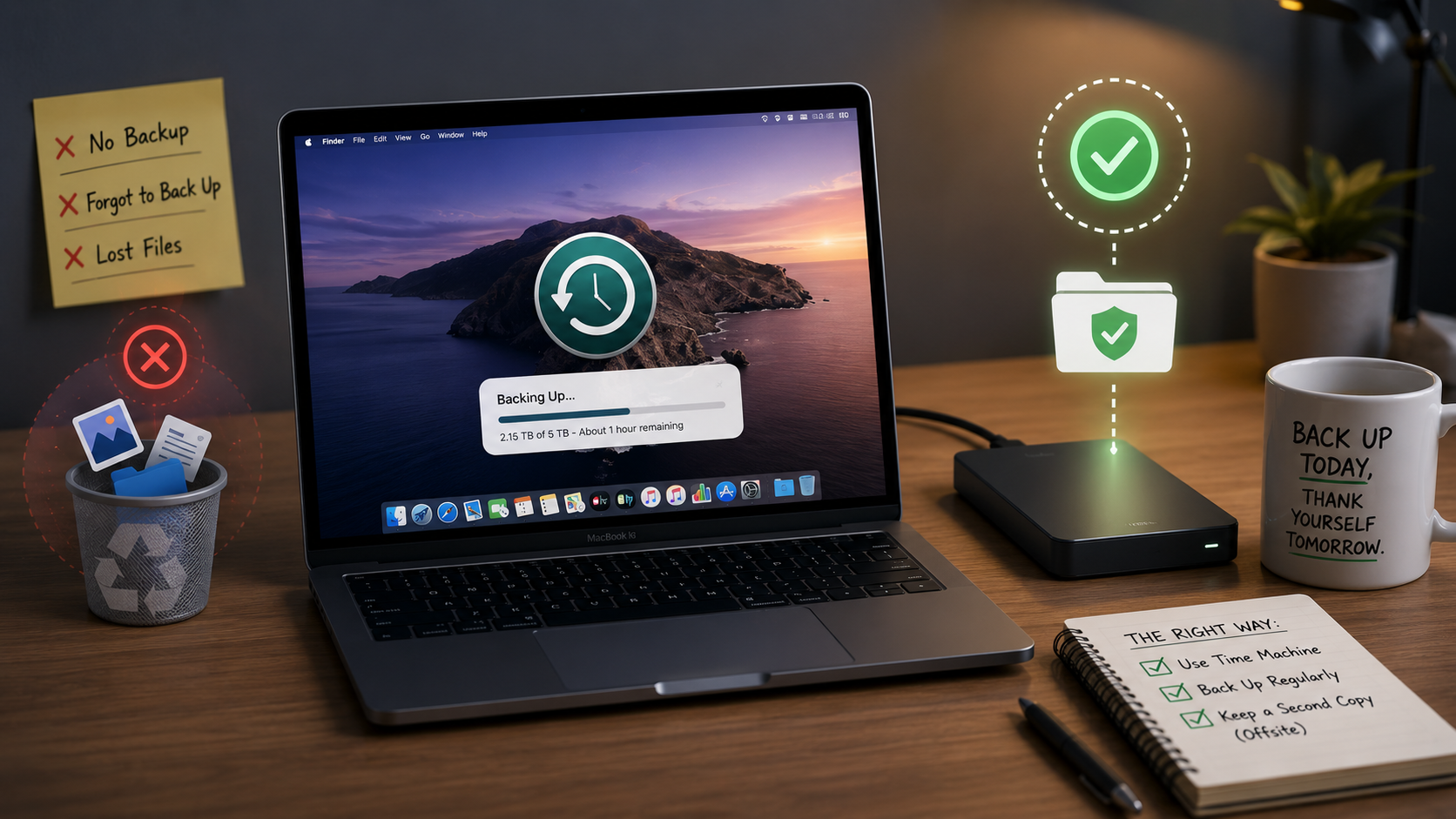
The gold standard in data protection is the 3-2-1 rule: three copies of your data, on two different types of media, with one copy stored offsite. For most individuals and small businesses, a practical version of this looks like: your working files on your Mac, a Time Machine backup on an external drive, and a cloud backup service like Backblaze running quietly in the background.
That combination covers virtually every realistic failure scenario — hardware failure, theft, fire, and accidental deletion — with minimal ongoing effort once it’s set up.
Time Machine: Simple, Powerful, and Underused
Apple’s built-in Time Machine is one of the most underappreciated tools in the Mac ecosystem. Plug in an external drive, turn it on, and it runs automatically — backing up hourly snapshots that let you restore individual files or your entire system to any point in time. It requires almost no maintenance and has saved countless people from disaster.
The catch: it only works if the drive is connected. Leaving your backup drive in a desk drawer defeats the purpose. It needs to be in regular rotation — ideally connected whenever you’re at your desk.
Test Your Backup
Here’s the step most people skip entirely: actually verifying the backup works. A backup you’ve never tested is a backup you don’t actually have. Once every few months, open Time Machine and restore a file — any file — just to confirm the process works end to end. It takes five minutes and provides genuine peace of mind.
The Bottom Line
A solid backup strategy isn’t complicated or expensive. It’s a one-time setup with minimal ongoing effort. The alternative — losing years of photos, client files, financial records, or creative work — is a cost no one should have to pay.
Let MacMentor Set It Up and Make Sure It Actually Works.
At The MacMentor, we set up complete, reliable backup systems for individuals and small businesses — Time Machine, cloud backup, the works — and we make sure everything is verified and running before we’re done. It’s one of the best investments you can make in your digital life. Visit TheMacMentor.com or stop by our Highland Park location to get protected.